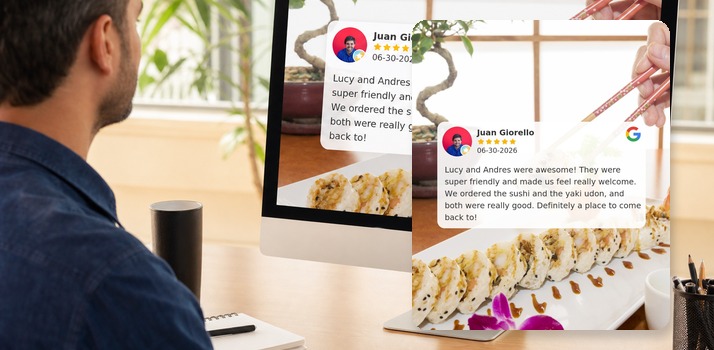
Great Reviews Should Not Stay Buried on Maps
A five-star Google review is marketing gold—but only if the right people see it. Most neighbors never open your Maps profile on a random Tuesday. They scroll Facebook and Instagram between errands, compare options on their phones, and decide who feels trustworthy in a few seconds. Sharing reviews puts social proof where attention already lives.
- Reach beyond search: Followers and friends see proof without hunting for your listing.
- Look professional: Branded review graphics beat blurry screenshots every time.
- Stay consistent: A simple workflow means you share wins the week they arrive—not months later.
The Old Way vs. the Dashboard Way
The manual path is familiar and slow: open Google, screenshot the review, crop it in a design app, write a caption, log into Facebook, then Instagram, then maybe Google again. By the time you finish, the moment has passed—and the next great review sits unused.
With Infuse Reviews Share Reviews, you stay in one place. Connect your accounts once, then turn any strong review into a feed-ready post in minutes.
Step-by-Step: Share a Google Review From Infuse Reviews
- Connect your channels. Link Facebook, Instagram, and Google under your account connections so Share Reviews can publish for you.
- Pick the review. From the dashboard, choose a recent, specific review—ideally one that names a service, outcome, or team member neighbors care about.
- Add a custom background. Upload a branded image (storefront, team photo, seasonal graphic) so the review sits on your look—not a plain white box.
- Write a short comment. Thank the customer, highlight the service, or invite others to book. Keep it human and brief.
- Choose where to post. Select Facebook, Instagram, Google, or a combination, then share. The software builds the review image and publishes it.
That is the whole loop: select → brand → comment → share—without leaving the same hub you use to request and respond to reviews.
Feature Snapshot: Share Reviews Essentials
| Step |
What You Do |
Why It Helps |
| Select review |
Choose a standout Google (or Facebook) review from your dashboard |
You amplify real customer language, not marketing copy |
| Custom background |
Upload a branded or seasonal image under the review text |
Posts look on-brand and stop the scroll |
| Comment |
Add a short thank-you or service callout |
Context turns a quote into a conversation starter |
| Multi-channel share |
Post to Facebook, Instagram, and Google in one action |
One review works harder across every feed you own |
Tips for Reviews That Perform in the Feed
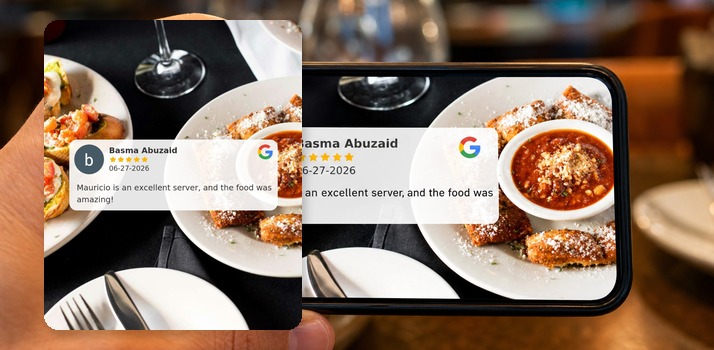
- Prefer specifics. “Mauricio is an excellent server, and the food was amazing!” beats “Great service!!!”
- Share while it is fresh. Recent reviews feel more credible than a highlight from two years ago.
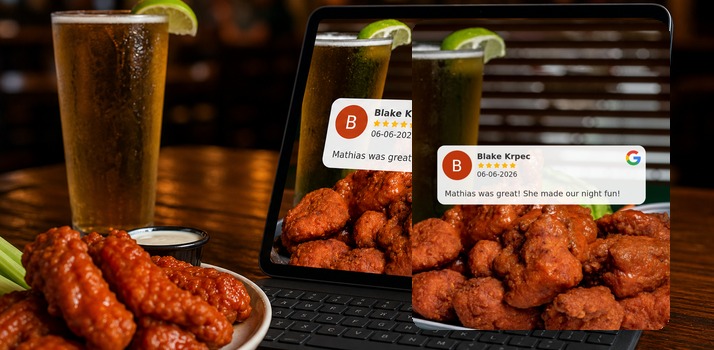
- Match the background to the story. Food photos for restaurant reviews; bar or lounge shots when the experience is the story.
- Do not overshare. A steady rhythm—one strong review a week—beats flooding the feed.
Frequently Asked Questions
Yes. Public Google reviews are commonly shared as social proof. Infuse Reviews creates a branded review graphic and posts it to your connected Facebook, Instagram, and Google accounts from the same dashboard.
No. Share Reviews builds the image for you: pick the review, choose a custom background, add an optional comment, and publish. That replaces the old workflow of cropping Maps screenshots and designing graphics by hand.
Start with recent, specific five-star reviews that mention services, staff, or outcomes neighbors care about. Short, concrete quotes read better in a feed than long, vague praise.
Share Reviews turns an existing customer review into a branded graphic and publishes it. Social posting is for broader content—tips, promos, photos, and campaigns. Use both: share proof when reviews land, and keep a steady content rhythm with social posting.
Put Your Best Proof Where People Scroll
You already earn the stories. Share Reviews is how those stories leave Google Maps and show up in the feeds where your next customers spend their time—without a design detour or a stack of logins. Connect your channels, pick a winner, brand it, and post.
Try Infuse Reviews
Free For 14-Days
Every Service. Full Access.
No Credit Card Required.
FREE TRIAL